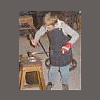
September 28, 200520 yr Here are the forge fire tools I use the most. L to R . Short handled rake & heat shield, Clinker Fork, Straight Poker, Broom, Clinker Tongs, SS Wet Coal Shovel, Hook Nose Clinker-Rake. What do you use for Forge Fire Tools?
September 28, 200520 yr I normally use a total of 4 tools. One is a shovel, one a very small (1/4" stock) poker with hooked end (like your straight poker but a bend at the end), one is a rake with a pointed nose that does double duty and the last is a pair of long nosed pickup tongs (which I use like your clinker tongs). I can get by without the shovel but use the rake constantly so that is the one tool I can't live without.
September 28, 200520 yr I use one tool. Its a bent poker with a flattened end, kind of like the one all the way to the right.
September 30, 200520 yr Ditto to that. Bent poker is the way to go. I split it a little about .5 inch at the end.
September 30, 200520 yr Bent poker with flattened end---make yours as pretty as you can cause if you do demo's folks will see it front and center. My ashdump lever has a dragons head on it too for the same reason. Another thing I find useful is an Al "grain scoop", as my travel coal is in a rubermaid round trashcan with a tight fitting lid and the scoup takes out about a pint with each go to fill the forge. Thomas
October 1, 200520 yr just a poker and when doing heavy work with big fires a heavy bar to pry out clinkers
Join the conversation
You can post now and register later. If you have an account, sign in now to post with your account.