MIG Gun holder 1
By Ten Hammers
- 3,629 views
- View Ten Hammers's images
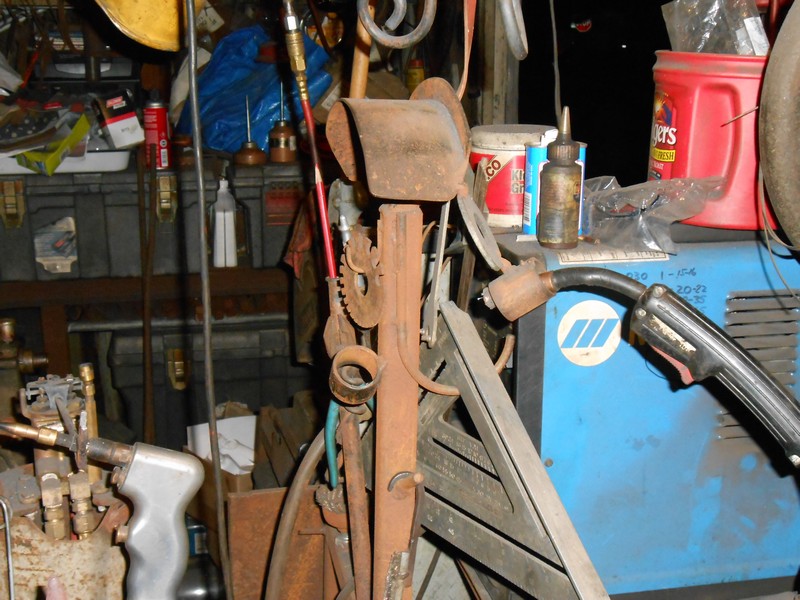
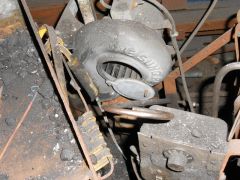
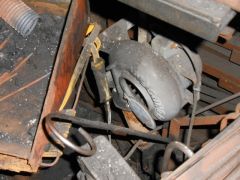
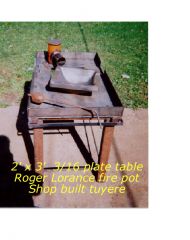
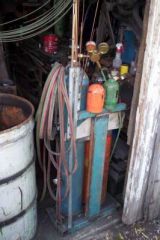
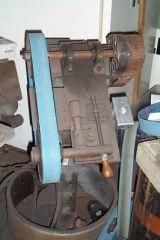
Primary welding area behind forge. The arched area on top of the post allows the draping of the gun over to allow access from either side of the table (which has holes on the other side for the gun to rest in). The Dillon torch obviously is at home in the gas saver but I have holes on the other side of the table if I am using the torch for heat or welding without the gas saver.
The picture was taken with me setting on a wooden stool. I can belly up to the table and weld with either the torch or the mig. The MIG can be stowed in the current location (which is out of the way for finishing a weld with the torch) OR in the hole directly ahead with helmet down. There are hangers above this location to allow for production work to be moved in process on the table to finished goods hanging out of the way.
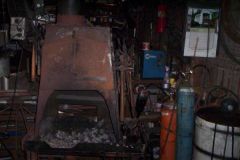
The key to all of this is being comfortable and having an ashtray and coffee close as well as a place to access the fat man tongs if I drop a small piece. Forged process pieces for various needs are stacked back here behind the forge on the table. Various fixtures and tools are placed on the table as well. Access to gas welding rod is close and the controls on the MIG easily accessed. There will be times when I forge pieces, step back to this location, weld, step back to the forge area (which has another piece heating), finish forging the welded piece, place it on another table, grab the next from the fire, forge it, weld yada yada. Access and location of tools is clear. This makes the system friendly.
Recommended Comments
Join the conversation
You can post now and register later. If you have an account, sign in now to post with your account.